When a Proxy Is Not Enough: Understanding System Proxy, TUN Mode, and App-Level Routing on Windows
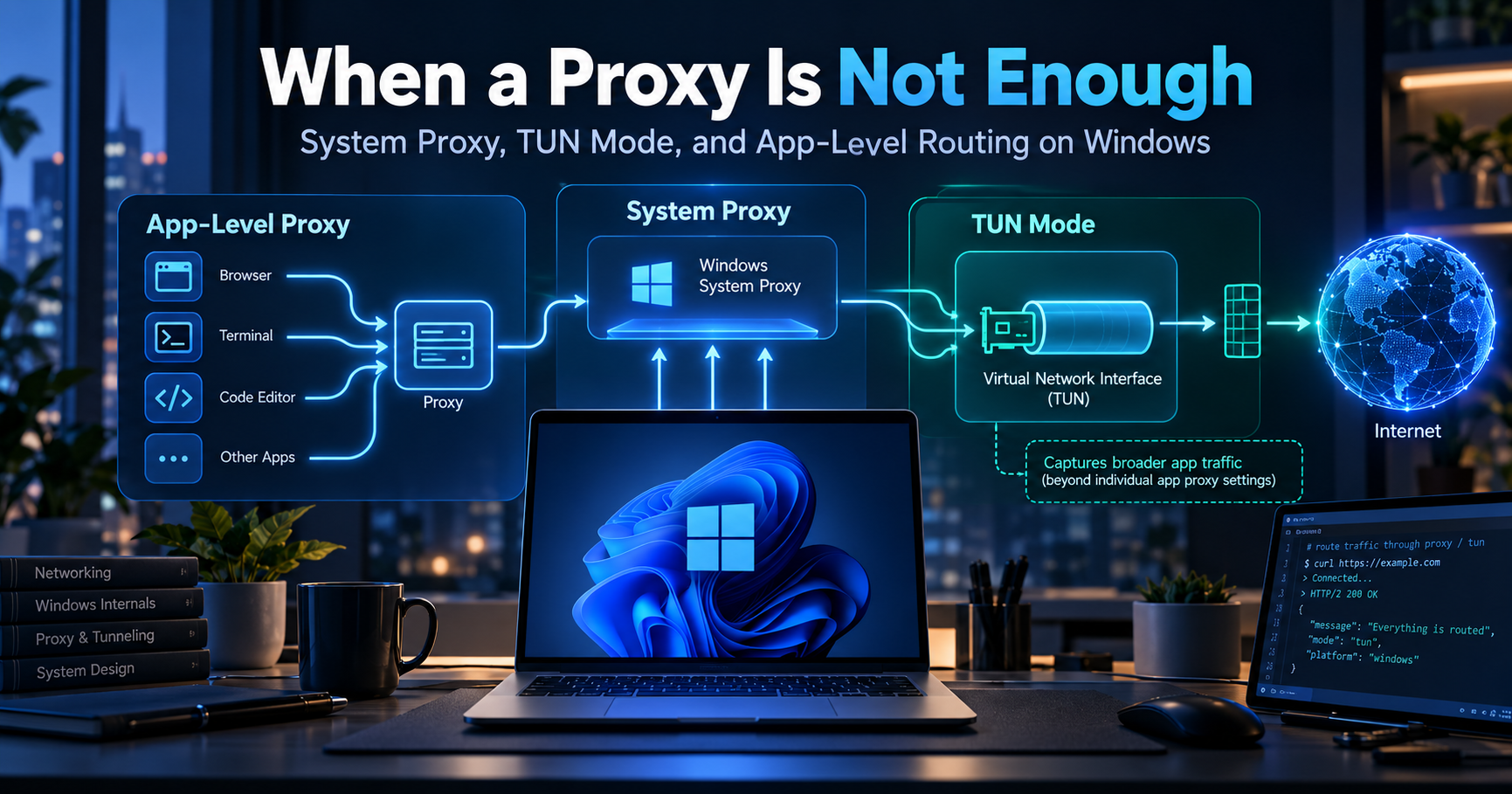
If you have ever configured V2Ray, v2rayN, a SOCKS proxy, or another local proxy on Windows, you may have run into a strange situation:
Your browser works perfectly through the proxy, but another application does not.
Chrome can reach the destination. Your terminal tool fails. A game launcher connects directly. A desktop application appears to ignore the proxy completely.
At first, this looks like a broken proxy configuration.
Usually, it is not.
The real issue is that applications on Windows do not all send network traffic through the same path.
Understanding the difference between an application proxy, Windows System Proxy, and TUN-based routing makes troubleshooting tools such as V2Ray much easier.
In this article, I want to explain the networking model behind that behavior rather than simply give you another list of settings to toggle.
The Mistake: Thinking "Proxy Enabled" Means "All Traffic Is Proxied"
When you enable a proxy in Windows, it is tempting to think the operating system starts forwarding every packet through that proxy.
That is not how it works.
A simplified Windows setup might look like this:
Chrome --------\
Edge -----------+--> Windows System Proxy --> Local Proxy --> Internet
App A ----------/

Game -----------------------------------------> Internet
CLI Tool -------------------------------------> Internet
Background Service ---------------------------> Internet
The applications at the bottom are not necessarily misconfigured.
They simply may not use the Windows proxy settings at all.
This distinction matters a lot when using V2Ray clients such as v2rayN.
Three Different Layers of Proxying
There are several ways an application can send traffic through a proxy.
For practical troubleshooting, I think about them as three layers.
1. Application-Level Proxy
Some applications have their own proxy configuration.
For example:
Application
    ↓
SOCKS5 127.0.0.1:10808
    ↓
V2Ray
    ↓
Remote Server
The application itself knows that a proxy exists.
This gives you precise control, but you have to configure every application individually.
Development tools often support this model.
For example, a command-line application may accept:
HTTP_PROXY=http://127.0.0.1:10809
HTTPS_PROXY=http://127.0.0.1:10809
or:
ALL_PROXY=socks5://127.0.0.1:10808
The exact variables and behavior depend on the application.
2. Windows System Proxy
Instead of configuring every application manually, Windows provides system-wide proxy settings.
Applications that respect those settings can automatically use the configured proxy.
The flow becomes:
Application
    ↓
Windows Proxy Settings
    ↓
v2rayN
    ↓
V2Ray Server
    ↓
Internet
For normal browsing, this works surprisingly well.
Chrome, Edge, and many traditional desktop applications can use the Windows proxy configuration without requiring additional settings.
This is one reason System Proxy is usually a good starting point when configuring a VPN for Windows.
It introduces less networking complexity than a virtual tunnel and is relatively easy to turn on, test, and debug.
But there is one major limitation.
Applications are still free to ignore it.
Why Some Applications Ignore the Windows Proxy
Software does not have to ask Windows:
"What proxy should I use?"
A developer can create a TCP or UDP connection directly.
Conceptually:
socket()
   ↓
connect(remote_server)
   ↓
network interface
   ↓
internet
There is no system proxy step in that flow.
This behavior is common in applications such as:
games
game launchers
custom desktop clients
background services
some command-line applications
software using custom networking libraries
applications relying heavily on UDP
That is why a successful browser test does not prove that every application on your machine is using V2Ray.
A Simple Troubleshooting Example
Imagine I have v2rayN running locally.
My configuration works.
I enable System Proxy.
Then I test:
Chrome          ✅ Works
Edge            ✅ Works
Git             ❌ Fails
Desktop App     ❌ Fails
Game Launcher   ❌ Fails
My first reaction should not be:
"The V2Ray server is bad."
Chrome already demonstrated that the proxy can reach the internet.
The better question is:
"Are these applications actually using my proxy?"
That single question can save a lot of unnecessary troubleshooting.
Enter TUN Mode
TUN changes the architecture.
Instead of relying on applications to voluntarily use a proxy, a virtual network interface can capture traffic at a lower level.
A simplified architecture looks like this:
Applications
      ↓
Windows Networking
      ↓
Virtual TUN Interface
      ↓
Routing Rules
      ↓
V2Ray / Xray Core
      ↓
Remote Server
      ↓
Internet
The important difference is that the application does not need to understand HTTP or SOCKS proxies.
From its perspective, it is simply accessing the network.
This makes TUN useful for programs that ignore System Proxy.
System Proxy vs TUN Is Really About Interception
The easiest way to understand the difference is:
System Proxy asks compatible applications to use a proxy.
TUN intercepts traffic at the networking layer.
That creates an important practical difference.
System Proxy
Application
      ↓
Does application support proxy?
      ↓
YES → Proxy
NO  → Direct connection
TUN
Application
      ↓
Network traffic
      ↓
Virtual interface
      ↓
Routing engine
      ↓
Proxy or Direct
This is why TUN provides much broader coverage.
But broader coverage does not automatically make it better.
Why I Don't Enable TUN by Default
TUN is powerful, but it introduces another layer into the networking stack.
That means there are more things to troubleshoot.
Potential problems include:
DNS behavior
route conflicts
firewall rules
MTU issues
virtual adapter problems
administrator permissions
application exclusions
incorrect bypass rules
When System Proxy already handles everything I need, adding TUN does not provide much value.
I prefer this rule:
Use the simplest network architecture that solves the actual problem.
It applies to software architecture, infrastructure, and networking equally well.
Routing Becomes Much More Interesting With TUN
TUN does not necessarily mean:
EVERYTHING → V2Ray
A routing engine can make decisions.
For example:
GitHub          → Proxy
Local network   → Direct
Private IPs     → Direct
Application A   → Proxy
Application B   → Direct
Blocked domain  → Block
Conceptually:
Packet
  ↓
Routing Rules
  ├── Direct
  ├── Proxy
  └── Block
This is a much more flexible model than simply configuring a system proxy.
It is also why tools based on Xray and V2Ray can become quite sophisticated once routing rules are involved.
The Developer Use Case
This becomes particularly relevant for developers because our machines rarely run only a browser.
A typical development environment may contain:
Browser
IDE
Docker
WSL
Git
npm / pnpm
Composer
Python
API clients
Database clients
SSH
Background services
These tools do not necessarily behave the same way.
Suppose your browser works but:
git clone
fails.
That does not automatically mean your internet connection or proxy server is broken.
Git may need its own proxy configuration.
The same applies to package managers.
For example, an npm-based workflow might behave differently from Chrome because npm is not simply inheriting the browser's networking configuration.
Knowing which networking layer you are troubleshooting is far more useful than repeatedly switching servers.
Docker and WSL Make This Even More Important
Containers add another layer.
If I run:
docker run ...
the application's networking context is not necessarily identical to the Windows host.
Likewise, WSL introduces its own networking environment.
Now our architecture may resemble:
Windows
├── Browser
├── Desktop Apps
├── WSL
│   └── Linux Applications
└── Docker
    └── Containers
A proxy configured for Windows applications may not automatically behave the way you expect inside each environment.
This is one reason networking problems become confusing so quickly.
People often ask:
"Why does the URL work in Chrome but not inside Docker?"
The answer may have nothing to do with the destination URL.
The two requests may be leaving your machine through completely different network paths.
Debug the Path, Not Just the Error
When a connection fails, I try to identify the complete path.
Instead of thinking:
App → Internet
think:
App
 ↓
Proxy configuration
 ↓
DNS
 ↓
Routing
 ↓
Network interface
 ↓
Local proxy
 ↓
Remote server
 ↓
Destination
Now troubleshooting becomes systematic.
Ask:
Does the application use System Proxy?
Does it have its own proxy configuration?
Is it running inside WSL or Docker?
Is DNS resolved locally or through the tunnel?
Is traffic going through TUN?
Are routing rules sending it directly?
Can the proxy itself reach the destination?
This approach is much more reliable than randomly changing V2Ray settings.
Testing Whether Traffic Is Actually Using the Proxy
A simple external IP test can be useful.
First, check your public IP without the proxy.
Then enable your V2Ray configuration and test from different environments.
For example:
Browser       → IP A
PowerShell    → IP ?
WSL           → IP ?
Container     → IP ?
Application   → IP ?
If the browser reports the proxy IP while another environment reports your normal IP, you have learned something important.
The server is probably working.
Your traffic paths are different.
Where a Normal VPN Fits Into This
Traditional VPN applications usually work closer to the network-interface model than a browser proxy.
That is why users often expect:
Connect VPN
   ↓
Device traffic uses VPN
With proxy-based tools, the behavior can be much more selective.
Neither architecture is inherently superior.
They are solving slightly different problems.
For users who do not want to manage individual proxy behavior, using a conventional service such as ZiNet VPN can offer a simpler experience across common devices.
And the networking model is not identical across operating systems either.
On mobile platforms, VPN clients are generally integrated differently from Windows proxy applications. If you also work from a phone, the configuration for a VPN on iPhone therefore should not be assumed to behave exactly like v2rayN's System Proxy on Windows.
A Practical Rule I Use
My decision tree is simple.
Start with System Proxy
If I only need:
Browser
+
normal proxy-aware applications
I start with System Proxy.
Configure the Application Directly
If only one development tool fails and it supports a proxy, I usually configure the proxy directly inside that tool.
Example:
Browser       → System Proxy
Git           → Explicit Proxy
Everything else → Direct
This keeps the setup predictable.
Use TUN When the Problem Is Broader
If several applications bypass the proxy or I need network-level routing:
Applications
   ↓
TUN
   ↓
Routing
   ↓
V2Ray
then TUN becomes the cleaner solution.
TUN Does Not Automatically Mean Better Performance
One misconception worth addressing is that TUN is somehow a "faster mode."
It isn't.
Performance depends on things such as:
latency
packet loss
server capacity
network congestion
ISP routing
protocol configuration
server location
transport choice
TUN changes how traffic reaches the proxy.
It does not magically improve the path between the proxy server and the destination.
In some environments, an unnecessarily complicated routing configuration can even make debugging performance problems harder.
Understanding the Network Is More Valuable Than Memorizing Settings
Networking tools change.
v2rayN changes.
Windows changes.
Different V2Ray and Xray clients expose different options.
But the underlying mental model remains useful.
Whenever a proxy works in one application but fails in another, remember that traffic can be intercepted at different layers:
Application-level proxy
        ↓
System Proxy
        ↓
TUN / network-level routing
Once you understand those layers, many "mysterious" proxy problems stop being mysterious.
Final Thoughts
The most useful lesson I learned while working with V2Ray on Windows is that a successful connection does not mean every application is using that connection.
System Proxy is an instruction that compatible applications can follow.
TUN works deeper in the network stack and can capture traffic from applications that never knew a proxy existed.
For most setups, I would still start simple:
System Proxy
      ↓
Test applications
      ↓
Configure specific apps if necessary
      ↓
Use TUN only when broader routing is required
The goal is not to build the most advanced networking configuration possible.
The goal is to understand where your packets are going — and use the simplest architecture that sends them where you want.